

An MP3 transcript is useful only when it helps the team prepare for the next meeting. For a recurring weekly call, the real workflow is not simply “upload and transcribe.” It is capture, upload, review, extract decisions, assign owners, and carry unfinished work into the next agenda.
Comu accepts MP3 recordings through the upload function in Comu App and Comu Web. If you also record new meetings with Comu Action Pro, the recording can enter the same workspace without the separate export-and-upload step.
MP3 Transcription Workflow at a Glance
Use MP3 upload for recordings you already have. For meetings that repeat every week, direct capture reduces file handling and makes it easier to maintain one continuous record of decisions and action items.
| Step | MP3 upload workflow | Direct device workflow |
|---|---|---|
| Capture | Record with a phone, laptop, meeting platform, or another recorder | Record on Comu Action Pro |
| Transfer | Find, rename, and upload the MP3 | Recording enters the Comu workflow directly |
| Transcribe | Process the uploaded file | Generate transcription from the device recording |
| Review | Check names, numbers, dates, and speakers | Check the same critical details |
| Follow up | Create a summary and action list | Create a summary and action list in the same workspace |
Both routes can work. The difference is how many manual handoffs the team repeats each week.
How to Transcribe an MP3 Meeting
1. Prepare the recording
Use a clear filename before uploading, for example:
Product-Weekly-2026-10-12.mp3
Include the meeting name and date. This makes recordings easier to search and prevents several files named “audio” or “meeting” from accumulating in the same folder.
2. Upload the file
Open Comu App or Comu Web and select the uploaded-file input. Choose the MP3, confirm the meeting language, and start processing. The upload interface displays the current file-size, duration, and plan limits, so check it before sending a long recording.
3. Review the transcript
Do not begin by correcting every punctuation mark. Check the details that affect decisions and follow-up first:
- participant and company names;
- figures, prices, percentages, and quantities;
- deadlines and calendar dates;
- product names and technical terms;
- speaker labels around decisions;
- sections where several people spoke at once.
4. Create the weekly output
Turn the reviewed transcript into a short operating record rather than forwarding pages of raw text.
| Weekly meeting output | What it should contain |
|---|---|
| Summary | Important progress, risks, and changes since last week |
| Decisions | What was approved, rejected, postponed, or left open |
| Action items | Task, owner, deadline, and dependency |
| Follow-up message | Concise recap for participants and stakeholders |
| Next agenda | Unresolved items and decisions required next week |
Why Weekly MP3 Uploads Become Repetitive
Uploading one recording is easy. Repeating the same file-management steps every week is where friction appears. Someone must locate the recording, check that it is complete, rename it, upload it, wait for processing, and place the result in the correct project.
The process becomes fragile when responsibility changes between team members or recordings are scattered across phones, meeting platforms, and download folders. A simple naming rule and a shared destination solve much of this problem.
| Recurring problem | Practical fix |
|---|---|
| Files are difficult to find | Use one naming format and one shared folder |
| Wrong meeting language | Confirm language before transcription |
| Transcript lacks context | Add the agenda or project name before summarizing |
| Action items disappear | Use a fixed owner-and-deadline table |
| The next meeting starts from memory | Add unfinished actions to the next agenda |
When Direct Recording Is More Efficient

MP3 upload remains the right choice for an existing archive, recordings received from another person, or audio exported from a meeting platform. Direct recording is more efficient when the same team meets frequently and controls the capture process.
Comu Action Pro uses a six-microphone adaptive array with AI voice enhancement and noise reduction. Comu lists pickup up to 7 meters, up to 70 hours of recording on one charge, and transcription and translation across 113 languages. Place the device flat near the center of the table so participants are recorded from more balanced distances.
The device does not remove the need for review. Speaker overlap, distant voices, unusual names, and specialist vocabulary can still require checking against playback. Its advantage is continuity: the meeting is captured directly without relying on a phone recording that must be found and transferred later.
What Is Included in Comu Plans?
The included Starter plan provides unlimited real-time transcription and basic summaries. This covers the core workflow for turning regular conversations into readable notes.
Premium and Elite are optional plans for teams that want more advanced processing and higher workflow capacity. Depending on the plan, these features can include deeper analysis, automatic organization, translation, and AI workflows for producing emails, documents, presentations, and other follow-up material.
The practical distinction is straightforward:
| Need | Appropriate route |
|---|---|
| Transcript and basic meeting summary | Starter |
| Occasional advanced workflow | Use included Agent Credits and check current allowances |
| Frequent emails, documents, presentations, or deeper analysis | Premium or Elite |
Plan allowances and upload limits can change, so use the current Comu App or Comu Web interface when planning a high-volume workflow.
A Better Weekly Meeting Routine
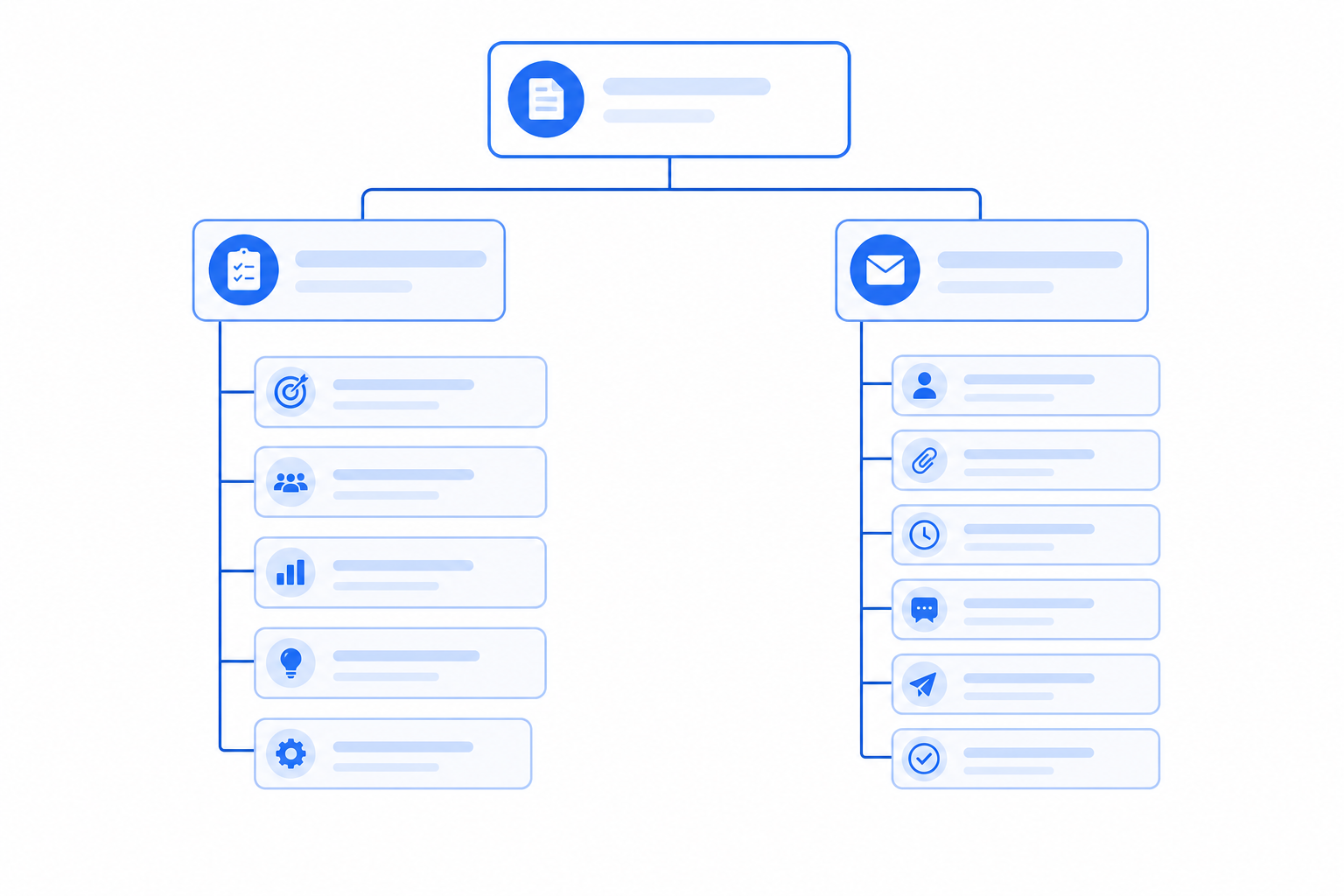
Use the previous meeting record to open the next one. This creates continuity instead of a collection of isolated transcripts.
- Review overdue actions from the previous week.
- Record progress, blockers, and decisions in the current meeting.
- Confirm each new action with an owner and deadline.
- Review the transcript immediately after the meeting.
- Share the summary and add unresolved items to the next agenda.
This routine keeps the transcript as supporting evidence while the summary remains the document people actually use.
Frequently Asked Questions
Can I upload an MP3 to Comu?
Yes. MP3 recordings can be added through the uploaded-file input in Comu App or Comu Web. Check the upload interface for current file-size, duration, and plan limits.
Should I keep the original MP3 after transcription?
Yes, if your retention and privacy policy allows it. The recording is useful when a name, figure, decision, or speaker label needs to be verified.
Is an MP3 transcript enough for meeting minutes?
Usually not. A transcript preserves the conversation, while meeting minutes should extract decisions, action items, owners, deadlines, and unresolved questions.
How can I improve a transcript from a noisy meeting?
Start with better microphone placement, reduce the distance between speakers and the recording device, and review uncertain sections against playback.
Do I need a paid plan for basic transcription?
The Starter plan includes unlimited real-time transcription and basic summaries. Advanced workflows and allowances differ by plan, so confirm the current details in Comu App or on the official product page.
Turn This Week's Recording into Next Week's Plan
MP3 upload is a practical route for recordings that already exist. For recurring in-person meetings, direct capture can remove the repeated transfer step and keep recordings, transcripts, summaries, and follow-up work in one workflow.
Explore Comu Action Pro or upload one representative weekly meeting in Comu App or Comu Web to see which workflow fits your team.
