
How to Use Voice to Text: Three Routes from Speech to Clean, Editable Text
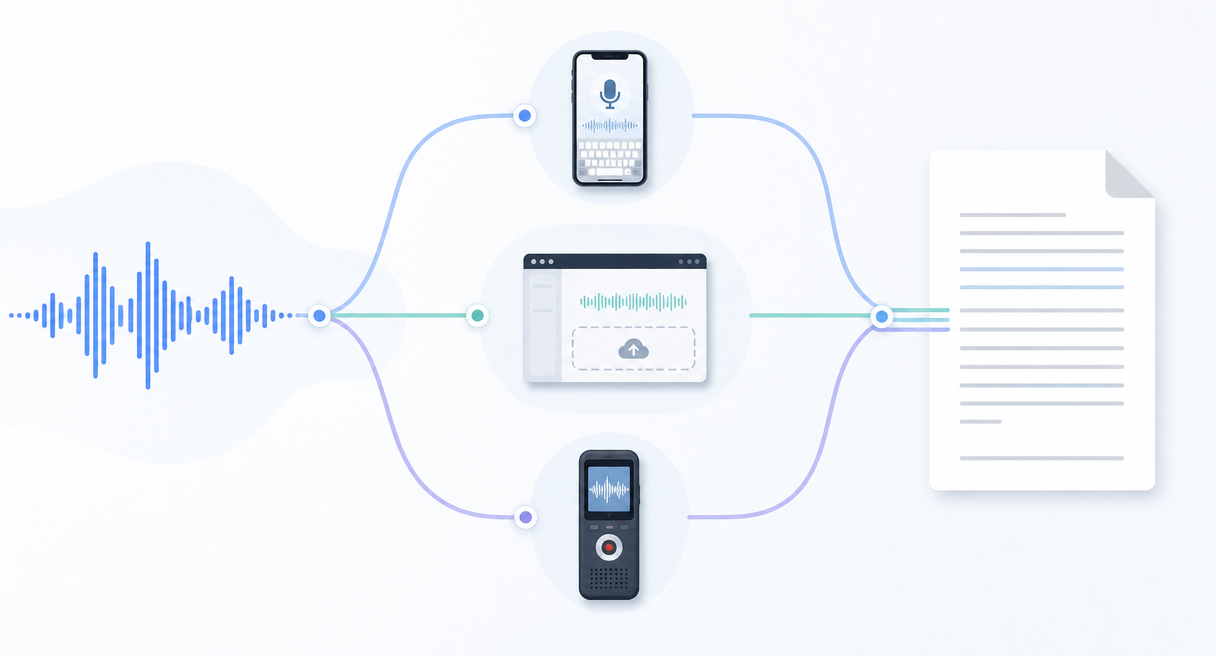
You can convert voice to text in three main ways: with your phone’s built-in tools, with a transcription app or meeting assistant, or with dedicated recording hardware paired with AI. This guide explains how each method works, when to use it, and what to expect from the resulting transcript.
The Direct Answer: Three Routes from Voice to Text
There are three main ways to convert voice to text: use the tools built into your phone, use transcription software, or use dedicated recording hardware paired with AI. Within these routes, transcription may happen as you speak or after a recording is complete. The right option depends on where you record, how long the session lasts, and what you need to do with the text afterward.
Route one uses what the phone already ships with, iOS dictation and Voice Memos on one side, Gboard voice input and the built-in recorder on the other. Route two uses software, upload-file services that take audio you already have, and meeting assistants that join online calls. Route three pairs a dedicated recording device with AI transcription and summarization. Pick by three variables, how long the sessions run, how loud the room gets, and whether the job needs a verbatim draft or a clean summary.
One boundary condition applies before any steps. What the built-in tools include, and what any service's free allowance covers, shifts with system versions and plan cycles, so this guide states mechanisms and points to the current system page or vendor page for live limits instead of freezing numbers that expire.
Route 1: Use Your Phone's Built-In Voice Typing and Voice Memos
The phone already in your pocket covers short dictation and casual voice memos at zero additional cost. The route carries three known constraints, close-range microphones, battery and storage drawn down by long sessions, and weak separation when several people talk at once. It is the right starting point, with edges worth knowing in advance.
The iPhone covers both live dictation and after-the-fact transcription with built-in tools.
1. Open Settings, tap General, select Keyboard, and turn on Enable Dictation. 2. Tap the microphone key inside any text field and speak, with words appearing as you go. 3. On a supported iPhone and in a supported language or region, record longer thoughts in Voice Memos, open the transcript view, and copy the text into another app. 4. Check whether call recording, transcription, and summarization are supported on your iPhone model, system version, language, and region. When Apple's call-recording feature is available, participants receive an audio notice.
Android phones generally support voice typing through Gboard, while recording and transcription features vary by manufacturer and model. Some devices include a recorder with transcription, but Android does not provide the same recording experience on every phone.
1. Install or update Gboard and switch on voice input in its settings. 2. Tap the microphone icon on the keyboard and dictate into any text field. 3. Record in the built-in recorder app where live transcription is offered, or transcribe the playback where your model supports it. 4. Confirm availability on your specific model and system version, because live transcription coverage varies across the Android ecosystem.
The constraints are physical before they are computational. Transcription quality may decline when speakers are far from the phone, the room is noisy, or several people speak at once. Long recording sessions can also consume battery and storage. Results vary by device, microphone placement, room conditions, and transcription software. When sessions run long, rooms get loud, or several voices matter, routes two and three pick up the job, and that handoff is the normal shape of a voice to text workflow rather than a failure of the phone.
Before recording a call, meeting, interview, or private conversation, follow applicable local laws, workplace policies, and consent requirements. Inform participants when required, and avoid uploading confidential recordings to a service unless its privacy and security practices meet your needs.
Route 2: Apps and Software That Transcribe Recordings or Uploaded Files
Software options split by input. Upload-file services take audio you already have and return text, while meeting assistants join online calls and produce notes, and both keep the work on hardware you own. Free allowances, queues, and language coverage shift by vendor and plan cycle, so the current vendor page stays the source of record for limits.
Audio you already have moves through an upload-file service in four steps.
1. Export or gather the recordings in a common audio format such as MP3. 2. Upload the file to a transcription service or import it into a recording app that accepts files. 3. Run the AI transcription pass and review the draft in the service's editor. 4. Copy or export the finished text into your notes or documents.
Online meetings take the assistant route instead. Connect a meeting assistant to your calendar or invite it into the call, let it capture and transcribe the session, then collect the notes it produces.
The constraints echo route one wherever live capture happens, laptop and phone microphones carry the same near-field physics, so the recording quality caps the transcription quality. Long files meet queues and allowance limits that vary by vendor, and language coverage differs service to service. When the conversation moves offline, runs long, fills a room, or needs summaries and action lists instead of raw text, a combined hardware and AI route enters the picture, and route three describes it.
Route 3: Dedicated Recording Hardware Plus AI Transcription
Comu Action Pro represents the third route: dedicated recording hardware connected to AI transcription and summarization software. It is designed for users who regularly record in-person meetings, interviews, lectures, or other conversations where phone placement, battery usage, and post-meeting organization may become concerns.
The capability list maps onto the constraints documented above. For idea capture, the official input model leads with device recordings, press to record one-handed and transcribe afterward, which serves dictation-style thought capture without waking a phone screen. For language reach, according to Comu's official product documentation, the connected Comu App supports real-time transcription and translation across 113+ languages, a maker-stated figure rather than an independently tested one. For room physics, the hardware lists a six-microphone adaptive array, pickup out to seven meters, AI noise reduction, and a 70-hour battery rating, which answers the close-range and battery limits of routes one and two. For file-based work, the Comu App supports four input types, recordings captured by the device, photos, uploaded files, and text, which allows audio and information collected elsewhere to enter the same AI workflow. For the last mile, the Comu App turns transcripts into summaries and action lists, extending the route from raw text toward usable notes.
The hands-on workflow takes four moves.
1. Press the record button to capture the session, with the device on the table or within reach of the speakers. 2. Open the Comu App and let the recording move into transcription. 3. Review the transcript and the generated summary, then edit names, numbers, and unclear passages. 4. Upload existing audio through the uploaded files input when the sound was captured on other equipment.
Deeper AI capabilities sit in the optional Premium and Elite plans, alongside a free Starter plan that includes unlimited real-time AI transcription and basic summaries, and current plan details live on the official pages and in the Comu App. Outputs are AI results that assist rather than replace review, and the maker publishes no accuracy percentage for transcription or summarization, so none appears here. Current capabilities and tier details are listed on the Comu Action Pro official product page.
Accuracy, Accents, and Honest Boundaries: What to Expect
Every voice to text route degrades under the same pressures, heavy accents, specialized jargon, background noise, and overlapping speakers. No official accuracy figure exists for the hardware route, and none is invented here. Plan on transcripts as drafts, with one human editing pass staying part of the workflow on all three routes.
Recognition quality varies with the scene rather than the route. Accents, technical vocabulary, crosstalk, and room noise push every engine toward its limits, and a dedicated microphone array helps at the capture stage without repealing physics. Multi-speaker separation differs by route, phone dictation is single-stream and weakest, software services vary, and the hardware route documents speaker separation as a capability dimension with effect claims left unquantified.
Converted text is a draft, and the editing rights stay yours. Names, numbers, and domain terms deserve a verification pass before anything is published or filed, and that pass is the difference between a transcript and a usable transcript. On language coverage, 113+ languages is the maker's official claim for Comu Action Pro, while phone dictation coverage follows your system version, and both statements carry their conditions with them.
Pick Your Route and See the Hardware Option
What export formats does the transcript come in? Each route hands over text in its own way. On a phone, dictation types straight into the field you are working in, and the Voice Memos transcript view lets you copy the text into any app that accepts it. Transcription services and meeting assistants vary by vendor, so review the draft in the editor and copy or export the finished text from there, with the vendor's page listing the exact formats on offer. On the hardware route, the transcript and its summary live in the Comu App, where you review and edit them before moving the text on, and since Comu publishes no format-by-format export list in its official public materials, the app and the current product page confirm what export options exist today.
Can I see words appear while I speak? Two mechanisms answer that question. Voice typing shows words as you dictate into a text field on iOS and Android keyboards, and real-time transcription renders a live transcript while a conversation runs, which is the documented live mode of the hardware route for in-progress sessions.
Match the route to the session before spending anything. Short personal dictation already lives on the phone, existing audio files and online meetings fit the software route, and frequent, far-field, multi-speaker sessions are where hardware plus AI earns its slot. To weigh the third route against your own scenes, see current capabilities, tier details, and input options on the Comu Action Pro official product page. Feature statements in this guide were checked against official materials on September 30, 2026. For a wider picture of voice to text and meeting transcription features, see the AI transcription feature overview.
